.png)




How to install the lock screen widget
Lock Screen Widget Installation Tutorial
Follow the tutorial below to install your desired lock screen widgets.
1 Selecting Widgets
1.On the Discover page of iScreen, tap Lockscreen Widgets and select your favorite widgets.
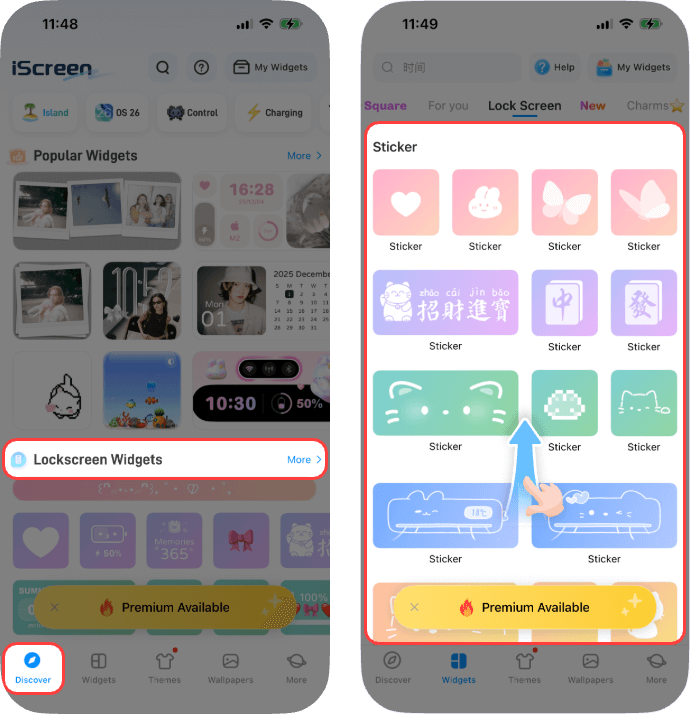
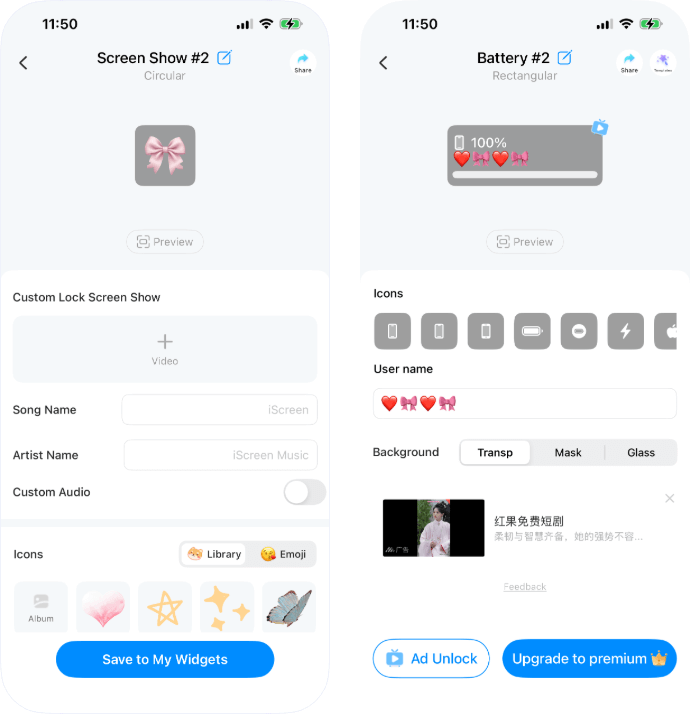
2. Tap the widget you want to add, complete its configuration, then tap Save to My Widgets to save it.
Some widgets require watching an ad (tap Ad Unlock) or upgrading to premium for saving, as they involve significant creative effort.
3.Go to My Widgets from the Discover page to find all your saved lock screen widgets.
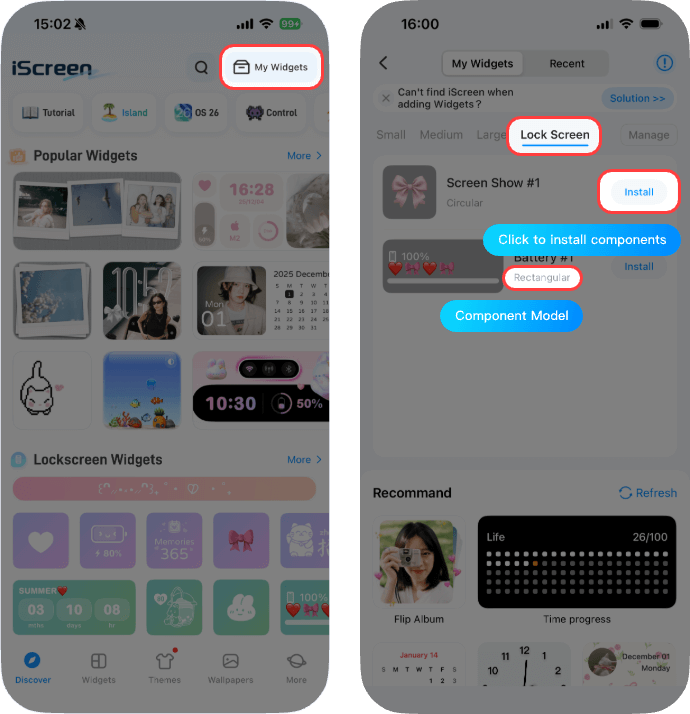
2 Installing Saved Lock Screen Widgets
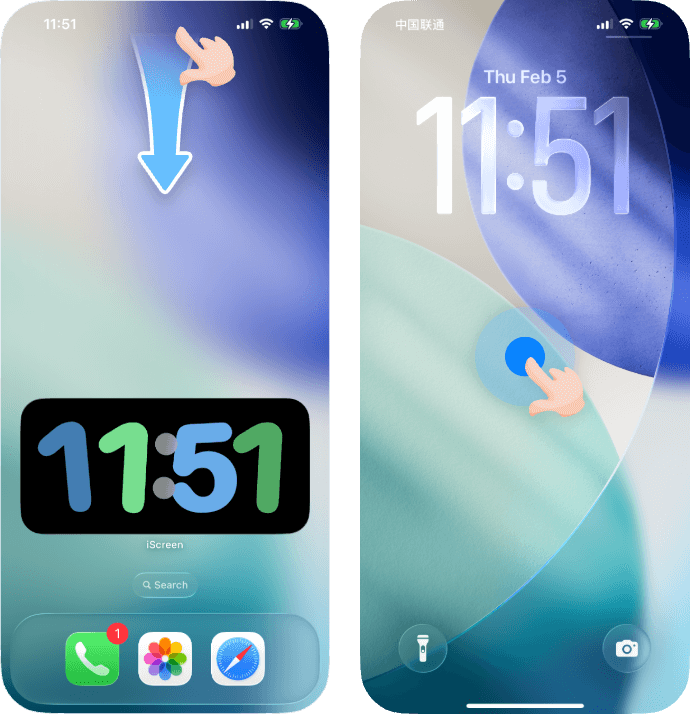
1. Swipe down from the top of the screen to enter the lock screen, then press and hold on a blank area.
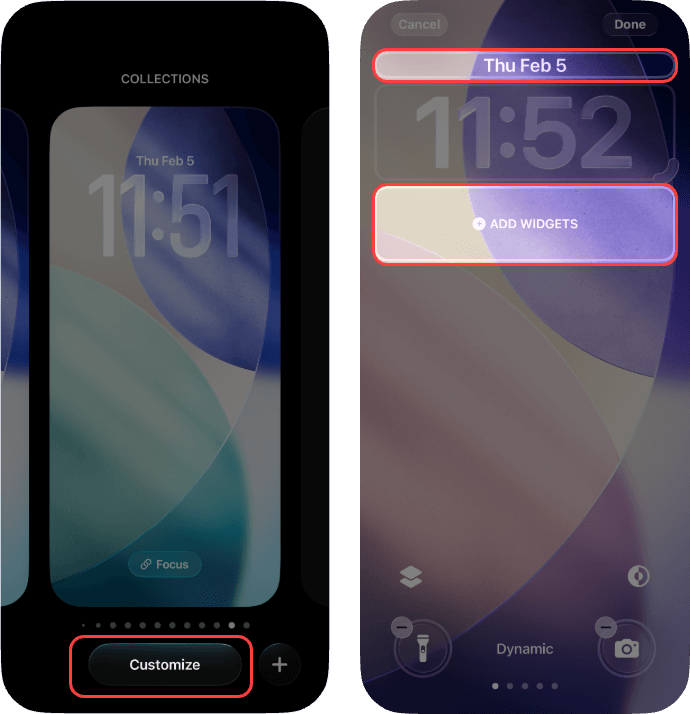
2. Tap Customize to enter the editing page, then tap the corresponding area.
(For Inline widgets, tap the area above the time; for Rectangular or Circular widgets, tap the area below the time.)
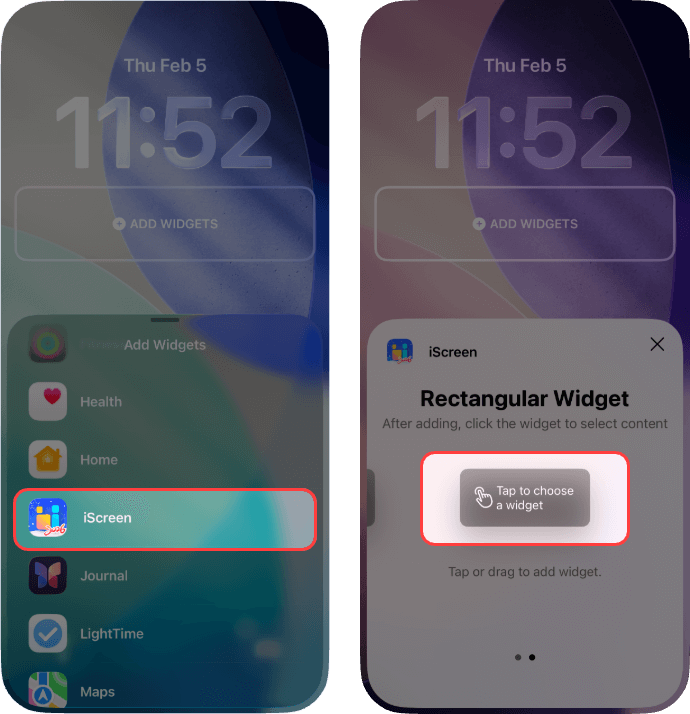
3. In the new pop-up, scroll down to find iScreen and tap it. Then, select the widget size you want to add by tapping or dragging it.
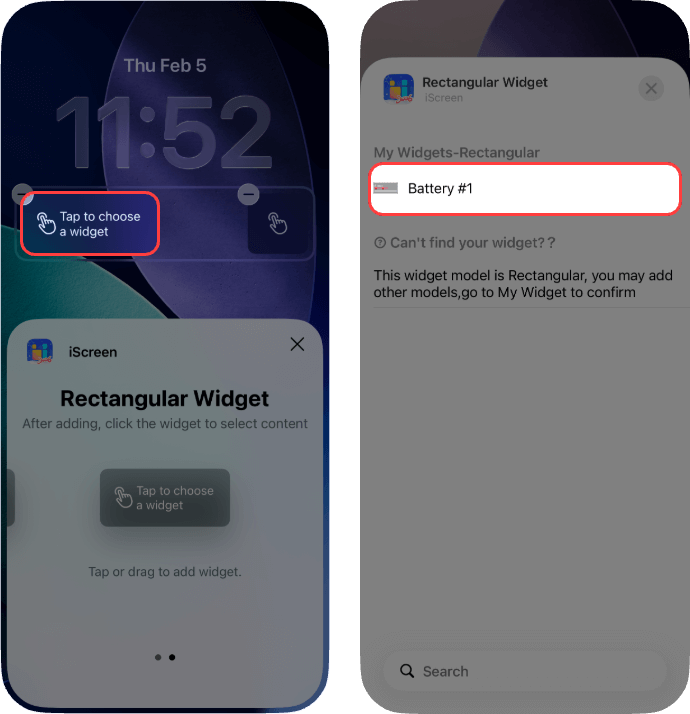
4. Tap the widget area, then select the widget you want to add from the pop-up.
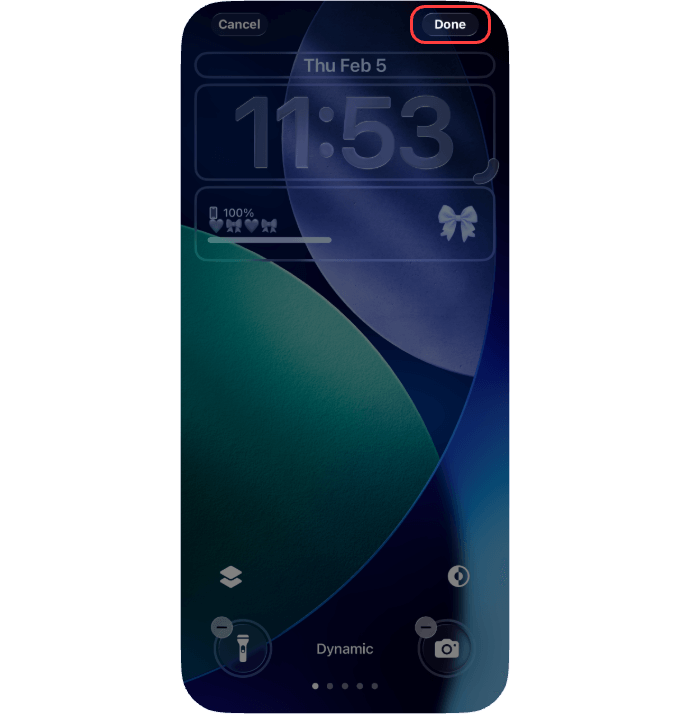
5. Tap Done to successfully add the widget.
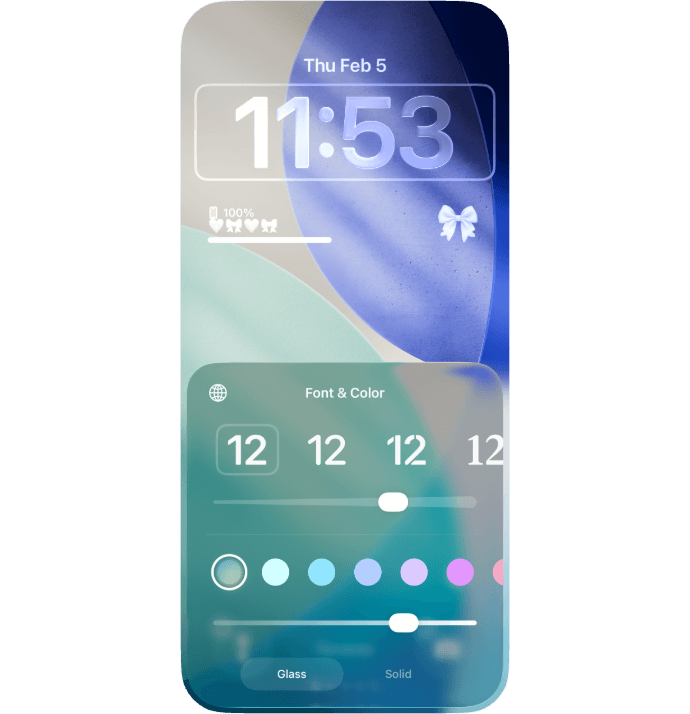
**The color of lock screen widgets follows your phone’s system settings. To adjust the color, tap the time area in the customization interface to edit the color.