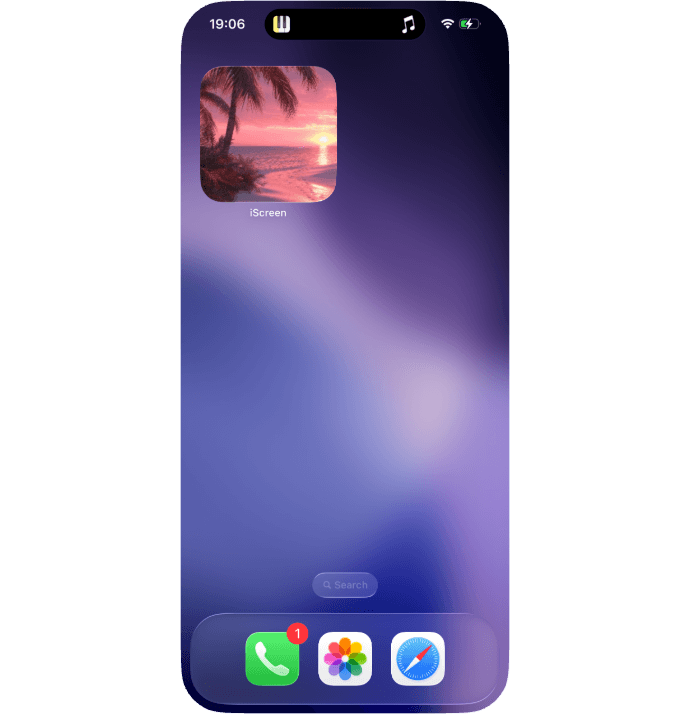
.png)




How to install desktop widgets
Desktop Widget Installation Tutorial
iScreen offers hundreds of desktop widgets for both aesthetic and functional purposes—you’re sure to find one you like! Follow the tutorial below to install your favorite widget on the home screen.
1 Selecting and Managing Widgets
1. In iScreen, you can discover widgets you like by browsing, exploring categories, or using the search function.
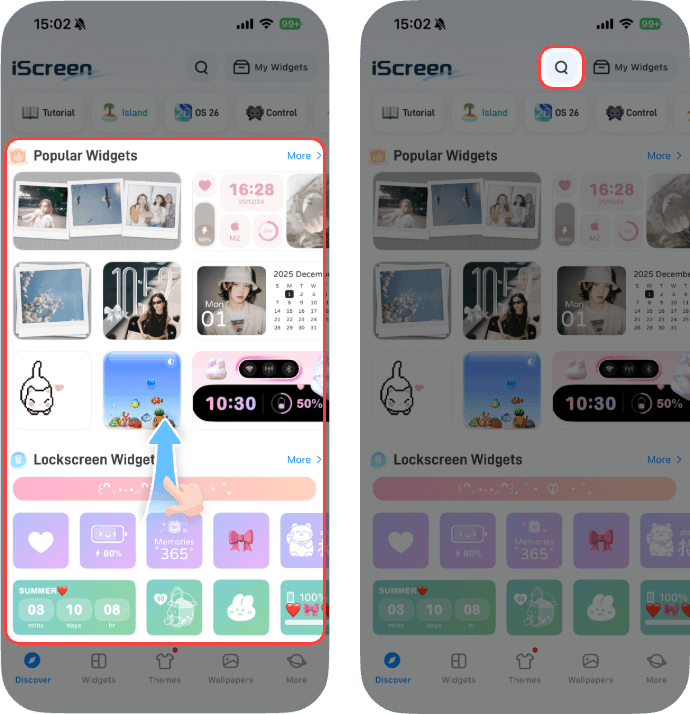
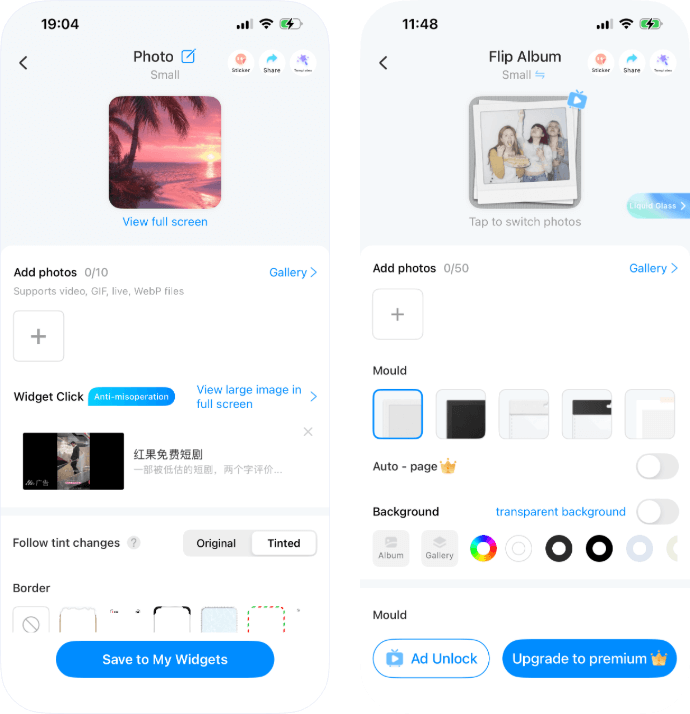
2. Tap the widget you want to add, complete its configuration, then tap Save to My Widgets to save it.
Some widgets require watching an ad (tap Ad Unlock) or upgrading to premium for saving, as they involve significant creative effort.
3. Go to My Widgets from the home screen to find all your saved widgets.
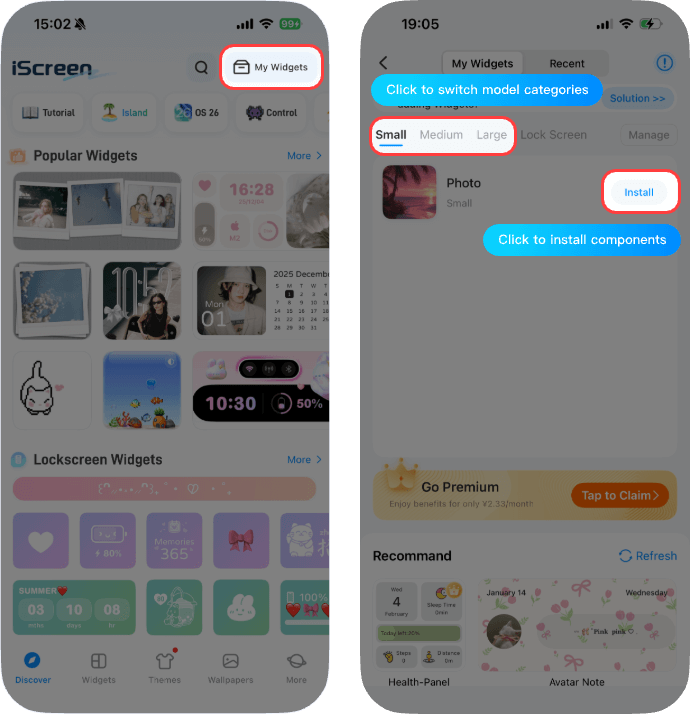
2 Installing Saved Widgets
1. Return to your home screen. Press and hold on an empty area, then tap Edit (or +) in the top-left corner, and select Add Widget.
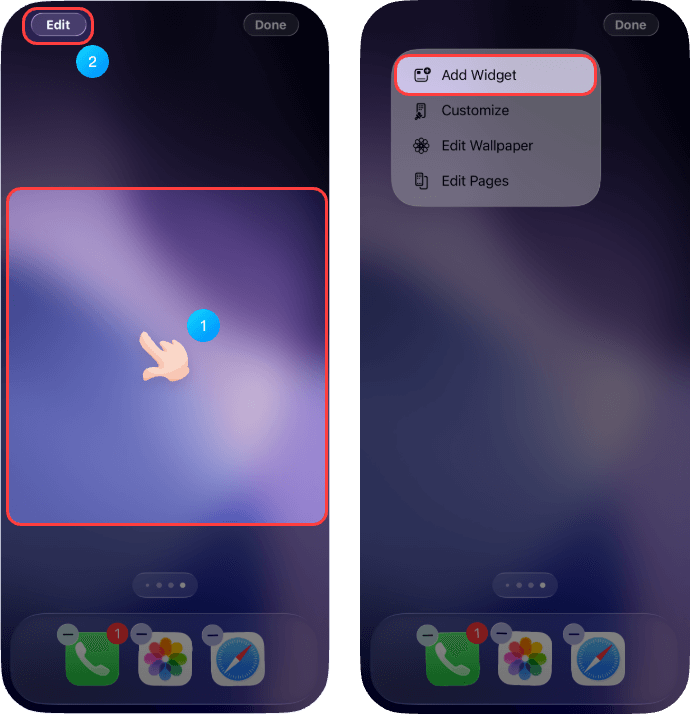
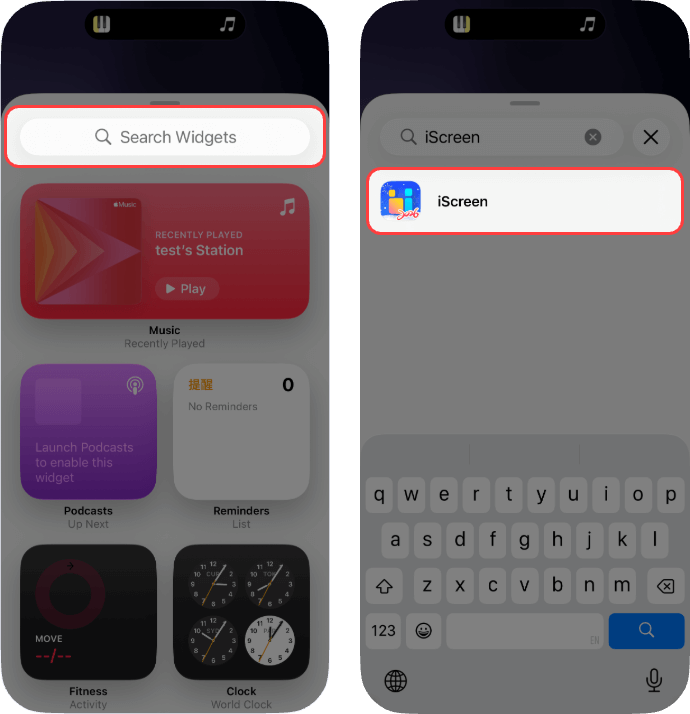
2. In the pop-up search bar, typeiScreen(or scroll down to find iScreen) and tap it.
If you cannot find or search for iScreen, try restarting your phone. (For other solutions, please see More → FAQ within the app.)
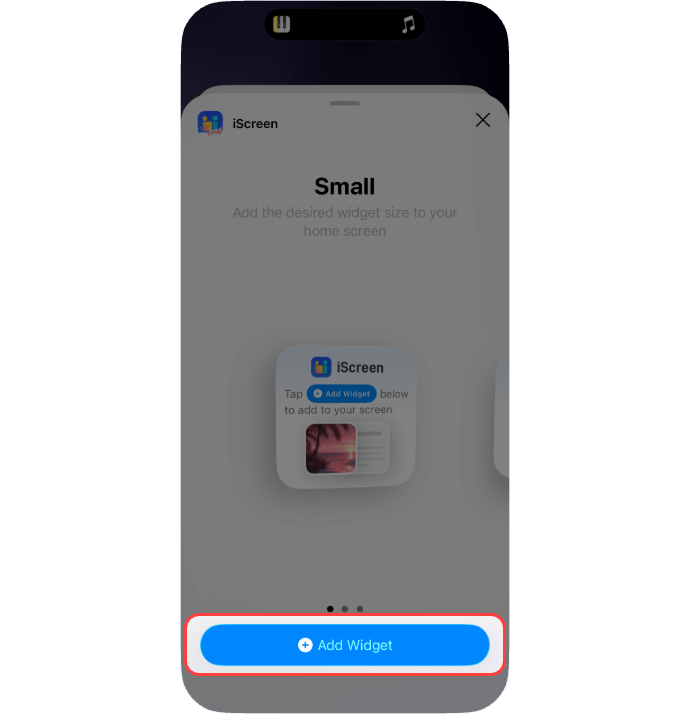
3. In the new pop-up, swipe to select the widget size you want to add, then tap Add Widget.
4. Tap the newly placed iScreen widget on your home screen, then tap Choose next to Current Widget.
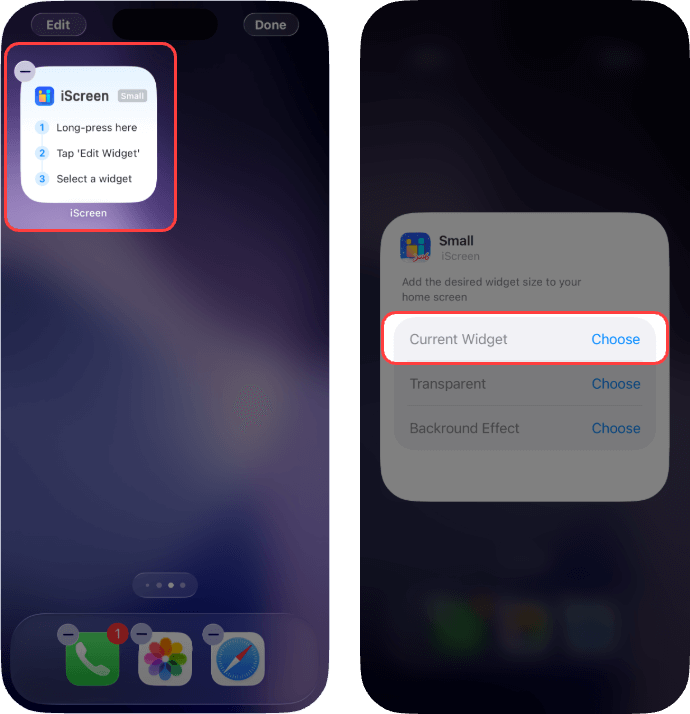
5. In the Current Widget pop-up, tap the widget you want to add. Then, tap any blank area above or below to return to the home screen.
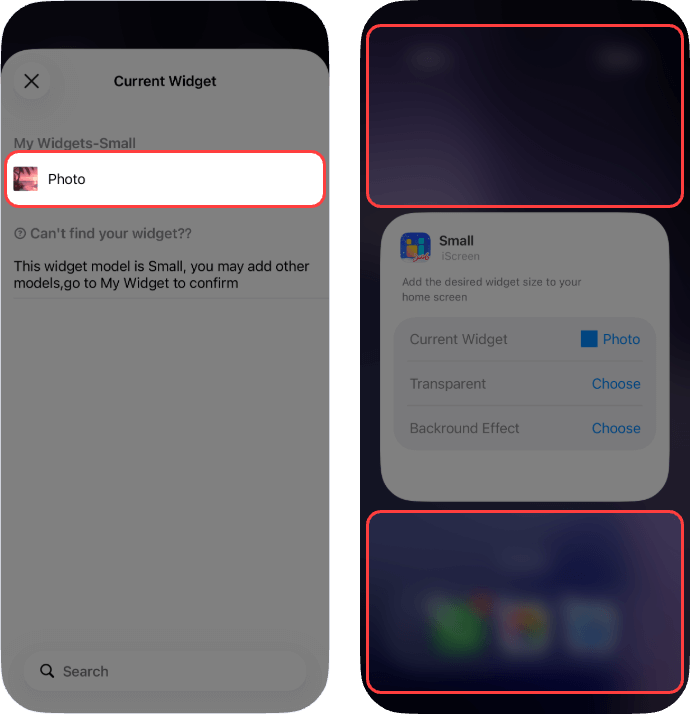
6. Widget setup is complete!